Saturday, July 16, 2016

Build Cross Platform Apps in Xamarin Forms Part One


Build Cross Platform Apps in Xamarin Forms :
                            Xamarin.Forms is a cross platform allows us to easily create user interface layouts that can be shared across Android, iOS, and Windows Phone.We can share most of the code across Mobile platforms.If our resource is Limited and you are mostly going to focus on 
Functionality rather then Design.Then Xamarin.Forms is the best to Develop cross platform.
Let’s start.
                We will try to create a Sample Application in this Session and how to create Login Page and How to navigate from one form to another.
Next articles we will focus on menu and toolbar.
 Step 1:
File->New Project ->Templates ->Visual C# ->Cross platform ->Blank App(Xamarin.Froms.Portable).
Select Blank App and give the Project Name and Project Location.

 Once Application is created it will look like below.
EmployeeInfo is our shared  Project We can place our code and Design and this project is going to shared by Both android and IOS.
 
Step 2:
            Before do anything I just created some folders for my convenience and now We have to create a Login Page for this Right click in View folder and Select Add-->New Item
  Select Cross-Platform under Visual c# --> Forms ContentPage  add a name and click ok.Likewise Create MainPage.


Step 3:
 We can to add login form Code as below.
MainPage.cs
  1. public class MainPage : ContentPage  
  2.     {  
  3.         public MainPage()  
  4.         {  
  5.             Content = new StackLayout  
  6.             {  
  7.                 VerticalOptions = LayoutOptions.Center,  
  8.                 Children = {  
  9.                         new Label {  
  10.                             HorizontalTextAlignment = TextAlignment.Center,  
  11.                             Text = "Welcome to EmployeeInfo Xamarin Forms!"  
  12.                         }  
  13.                     }  
  14.             };  
  15.     }  
 LoginPage.cs

  1. public class LoginPage : ContentPage  
  2.    {  
  3.        private readonly Entry _userName;  
  4.        private readonly Entry _password;  
  5.   
  6.        public LoginPage()  
  7.        {  
  8.            var add = new Button  
  9.            {  
  10.                Text = "Login",  
  11.                TextColor = Color.White  
  12.            };  
  13.            _userName = new Entry { Placeholder = "UserName" };  
  14.            _password = new Entry { Placeholder = "Password", IsPassword = true };  
  15.            add.Clicked += Add_Clicked;  
  16.            var stackLayout = new StackLayout  
  17.            {  
  18.                Spacing = 20,  
  19.                Padding = 50,  
  20.                VerticalOptions = LayoutOptions.Center,  
  21.   
  22.                Children =  
  23.                {  
  24.                    _userName,  
  25.                   _password ,  
  26.                    add  
  27.                }  
  28.            };  
  29.            Content = stackLayout;  
  30.        }  
  31.   
  32.        private void Add_Clicked(object sender, EventArgs e)  
  33.        {  
  34.            if (_userName.Text == "a" && _password.Text == "a")  
  35.            {  
  36.                Application.Current.MainPage = new MainPage();  
  37.            }  
  38.            else if (string.IsNullOrEmpty(_userName.Text) || string.IsNullOrEmpty(_password.Text))  
  39.            {  
  40.                DisplayAlert("Error""Username and Password are required""Re-try");  
  41.            }  
  42.            else  
  43.            {  
  44.                DisplayAlert("Failed""Invalid User""Login Again");  
  45.            }  
  46.        }  
  47.    }  
App.cs 
  1. public class App : Application  
  2.    {  
  3.        public App()  
  4.        {  
  5.            MainPage = new LoginPage();  
  6.        }  
  7.   
  8.        protected override void OnStart()  
  9.        {  
  10.            // Handle when your app starts  
  11.        }  
  12.   
  13.        protected override void OnSleep()  
  14.        {  
  15.            // Handle when your app sleeps  
  16.        }  
  17.   
  18.        protected override void OnResume()  
  19.        {  
  20.            // Handle when your app resumes  
  21.        }  
  22.    }  
 Step 4:
           Run the application. 

 Enter username and password and click Login


Summary

               We created a Sample EmployeeInfo Application and add Login page and add some code to navigate around the Application in Next articles we will focus on Menu and Toorbar.
Thank you 

Create Connection String Outside VS


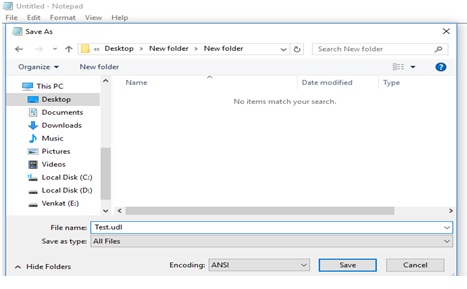
 Step 1: Open Notepad and click File-Save As-Test.Udl. Try to save the file format as UDL


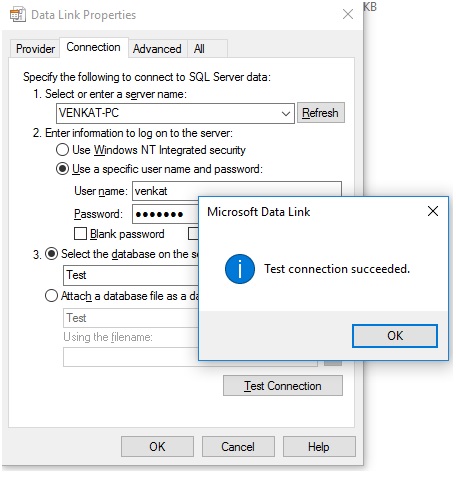
Step 2: Open the file and select SQL Server, followed by a username and a password.Once Authentication is done. We have to select the database, we want:


Step 3: Click the Test Connection and subsequently click OK:


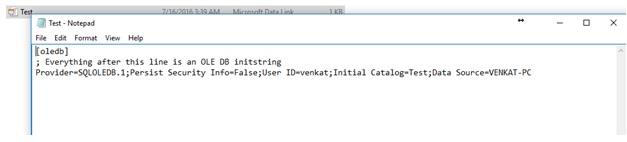
Step 4: Open the file as a text file (use right click and choose open with Notepad.


Tuesday, July 12, 2016

TempData , Peek and Keep ASP.NET MVC

 What is need of "TempData" ?

TempData helps to preserve data throughout the current request. The request can travel through action to action or controller to controller until the view is displayed.

What is difference between TempData and ViewData ?

"TempData" maintains data for the complete request while "ViewData" maintains data only from Controller to the view.

Does "TempData" preserve data in the next request also?

"TempData" is available through out for the current request and in the subsequent request it's available depending on whether "TempData" is read or not.

So if "TempData" is once read it will not be available in the subsequent request.

What is the use of Keep and Peek in "TempData"?

Once "TempData" is read in the current request it's not available in the subsequent request. If we want "TempData" to be read and also available in the subsequent request then after reading we need to call "Keep" method as shown in the code below.

@TempData["MyData"];
TempData.Keep("MyData");

The more shortcut way of achieving the same is by using "Peek". This function helps to read as well advices MVC to maintain "TempData" for the subsequent request.

string str = TempData.Peek("Td").ToString();

Difference between Html.EditorFor and Html.TextboxFor in ASP.NET MVC

If you are working on Web Application development using ASP.NET MVC, you would come across the Html.EditorFor and Html.TextboxFor in the Razor View.
The EditorFor is a kind of smart helper method. This will render the control based on the type in the model. For example, assume that you have a Boolean field in the model bind to the EditorFor. This will render checkbox.

Html.EditorFor

@Html.EditorFor(model => model.LastName)
This HTML helper method is very dynamic in nature. Based on which type of data is passed to this method, the output changes.

For example,
1. if model property type is of string type, it renders a textbox
2. if the property type is boolean type it renders a checkbox.
3. if the property type is of integer type, it render input type="number" textbox.

In order to control the output of the Html.EditorFor we can use EditorTemplates for different data types.

Html.TextBoxFor
@Html.TextBoxFor(model => model.LastName)
This HTML helper method only renders a TextBox as output irrespective of whatever data type the model property is of.

Thursday, March 3, 2016

Know read and write ratio before you tune database performance

 SELECT object_name(s.object_id) as usertable,
       SUM(user_seeks + user_scans + user_lookups) as reads,
  SUM(user_updates) as writes,
  SUM(user_seeks + user_scans + user_lookups+user_updates)  as totalIO,

CASE
WHEN SUM(user_seeks + user_scans + user_lookups+user_updates) >0
then round(SUM(user_seeks + user_scans + user_lookups)*100/SUM(user_seeks + user_scans + user_lookups+user_updates),0)
else 0
END
AS readratio,
CASE
WHEN SUM(user_seeks + user_scans + user_lookups+user_updates) >0
then SUM(user_updates)*100/SUM(user_seeks + user_scans + user_lookups+user_updates)
else 0
END
AS writeratio
FROM sys.dm_db_index_usage_stats AS s
INNER JOIN sys.indexes AS i
ON s.object_id = i.object_id
AND i.index_id = s.index_id
WHERE objectproperty(s.object_id,'IsUserTable') = 1
--AND s.database_id = @dbid
--GROUP BY object_name(s.object_id)

GROUP BY s.object_id

--order by totalIO desc,readratio desc,reads desc,writeratio desc,writes desc

order by totalIO DESC, writes desc,writeratio desc

Identify Unused SQL Server Tables

; with UnUsedTables (TableName , TotalRowCount, CreatedDate , LastModifiedDate )
AS (
  SELECT DBTable.name AS TableName
     ,PS.row_count AS TotalRowCount
     ,DBTable.create_date AS CreatedDate
     ,DBTable.modify_date AS LastModifiedDate
  FROM sys.all_objects  DBTable
     JOIN sys.dm_db_partition_stats PS ON OBJECT_NAME(PS.object_id)=DBTable.name
  WHERE DBTable.type ='U'
     AND NOT EXISTS (SELECT OBJECT_ID
                     FROM sys.dm_db_index_usage_stats
                     WHERE OBJECT_ID = DBTable.object_id )
)
-- Select data from the CTE
SELECT TableName , TotalRowCount, CreatedDate , LastModifiedDate
FROM UnUsedTables
ORDER BY TotalRowCount ASC

Wednesday, March 2, 2016

Find String start with alphabets c#

bool isLetter = !String.IsNullOrEmpty(segmentString) && Char.IsLetter(segmentString[0]);
 if (isLetter == false)
                {
                    do
                    {
                        segmentString = x12Reader.ReadNextSegment();
                    } while (!segmentString.StartsWith("ST") && !string.IsNullOrEmpty(segmentString));
                }